

If you run a service business using Jobber and QuickBooks, charging customers credit card processing fees may seem straightforward, but if you record those fees incorrectly, it can create messy bookkeeping, inaccurate sales tax reporting, and confusion during reconciliation.
At Nexus Financial, one of the common issues we see when onboarding new clients is improperly recorded credit card processing fees inside Jobber and QuickBooks. On the surface, invoices may look fine and deposits may still hit the bank, but behind the scenes, incorrect fee setup can create reporting problems that frustrate both business owners and bookkeepers.
As a bookkeeping firm specializing in Jobber and QuickBooks integrations, we help service-based businesses clean up these issues every week.
You can also find this information on my YouTube channel, specifically in my video, How to Charge & Record Credit Card Processing Fees in Jobber + QuickBooks, where I walk through the setup I recommend and explain why it keeps your books cleaner.
In this guide, I’ll show you how I recommend charging credit card processing fees in Jobber, how to record them correctly in QuickBooks, and what mistakes to avoid.
The Most Common Mistake
One of the biggest mistakes I see is business owners adding credit card fees directly as sales tax.
For example, if you want to charge a 3% processing fee, many people simply create a tax called “Credit Card Fee” and leave it attached to the invoice.
This causes problems.
Why?
Because sales tax and credit card fees are not the same thing.
Sales tax may need to be reported and remitted to your state.
Credit card fees are simply additional charges passed on to the customer.
If you mix the two, your books become confusing very quickly.
This becomes especially problematic if you operate in a state where your services are not taxable.
Now your reports may show fake taxable sales that never actually existed.
That creates unnecessary confusion for both your bookkeeper and your tax preparer.
First: Check Your State Laws
Before charging customers a credit card processing fee, verify whether your state allows it.
Some states restrict or regulate credit card surcharges. You can view your state’s legislation here.
You should confirm:
- Whether surcharges are allowed
- Whether surcharge percentages are capped
- Whether disclosure requirements apply
This step matters before making any invoice changes.
The Simplest Alternative: Raise Prices
Before discussing my preferred setup, I want to mention the easiest solution.
In many cases, simply raising your prices 3–5% annually is cleaner than adding separate credit card fees.
Why?
Because it avoids extra invoice complexity.
Instead of itemizing a fee, you build processing costs into your pricing structure.
This makes invoicing simpler and often creates a better customer experience.
For many businesses, this is the approach I prefer.
However, if you want to explicitly charge processing fees, here is the method I recommend.
My Preferred Method for Charging Credit Card Fees in Jobber
Inside Jobber, you can temporarily use a sales tax setting to calculate the fee percentage for you.
For example:
Invoice amount: $500
Credit card fee: 3%
Calculated fee: $15
Jobber’s tax calculation can save you from manually doing the math every time.
The key is this:
Use the tax setting only as a calculator.
Do not leave it as tax on the final invoice.
Step 1: Create a Temporary Credit Card Fee Tax
Inside Jobber, create a tax setting labeled something like:
Credit Card Fee = 3%
Again, this is only being used to calculate the surcharge amount.
Step 2: Build the Invoice Normally
Add your regular invoice line items.
Example:
Tree Labor = $500
Jobber calculates the temporary 3% fee for you.
That gives you a fee amount of:
$15
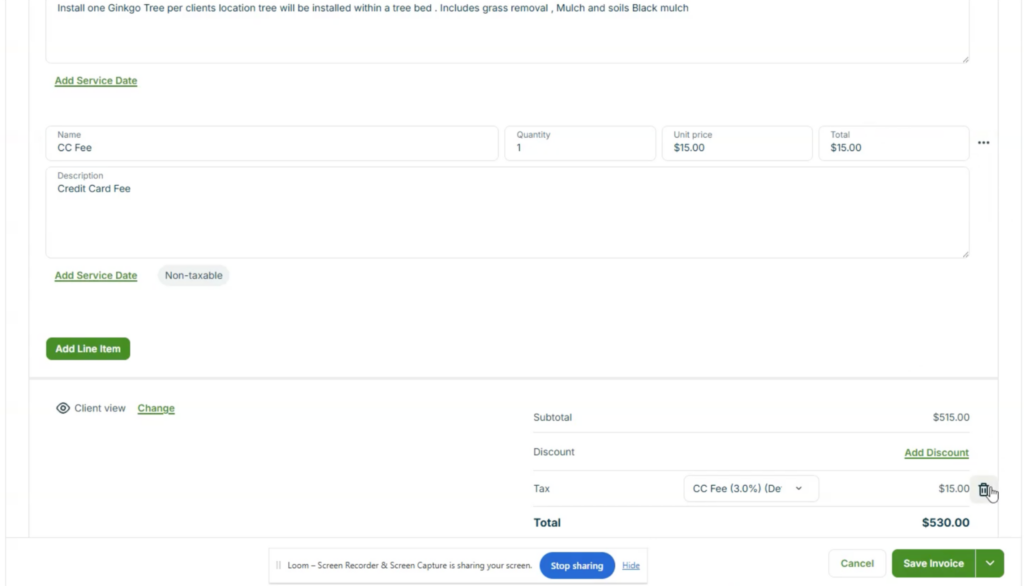
Step 3: Convert the Fee Into a Line Item
This is the most important step.
Take the calculated fee amount and create a normal invoice line item such as:
Credit Card Processing Fee = $15
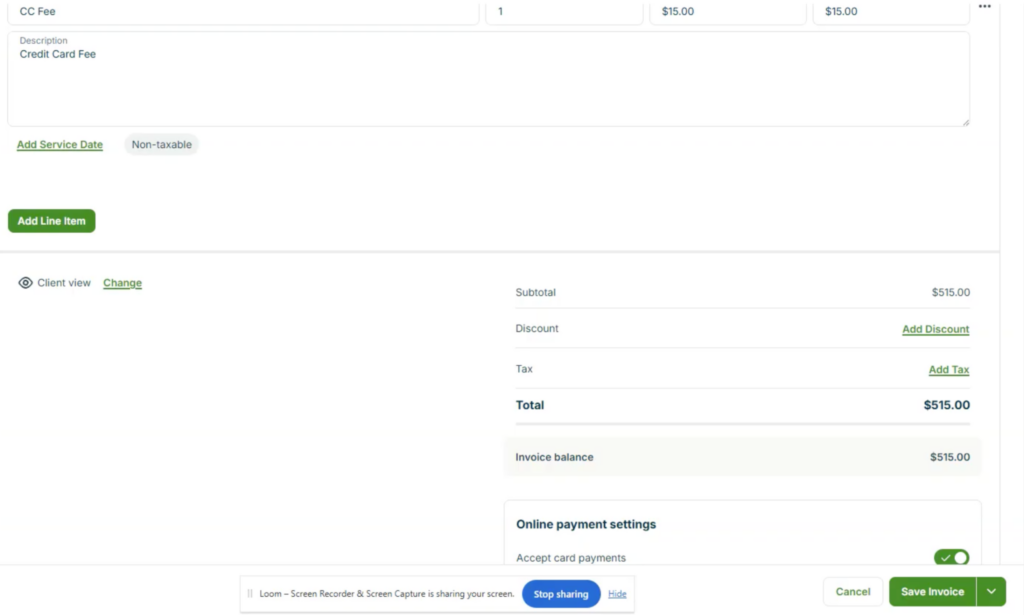
Once the fee is added as a line item, delete the temporary tax.
Now your invoice includes the surcharge without incorrectly classifying it as tax.
That keeps your accounting much cleaner.
Why This Method Works Better
This method solves several problems.
It helps you:
Avoid fake sales tax reporting
Keep invoice calculations simple
Maintain cleaner Jobber-to-QuickBooks sync
Reduce bookkeeping cleanup later
Most importantly, it prevents confusion during tax preparation.
If your bookkeeper sees credit card fees recorded as tax, they may spend unnecessary time trying to determine whether those amounts belong in sales tax filings.
That wastes time and increases cleanup costs.
How This Appears in QuickBooks
When invoices sync properly from Jobber into QuickBooks, the processing fee becomes part of invoice revenue rather than a tax liability.
This creates cleaner reporting.
You still want to separately record the merchant processing expense being withheld by Jobber.
Example:
Customer invoice total: $515
Customer pays: $515
Jobber processing fee withheld: $15
Net bank deposit: $500
Your books should reflect:
Revenue: $515
Merchant Processing Expense: $15
Net Deposit: $500
This ensures your income and expenses are recorded accurately.
Final Thoughts
Charging credit card processing fees inside Jobber is not inherently difficult, but doing it the wrong way can create major bookkeeping headaches.
The most important takeaway is simple:
Do not leave credit card processing fees coded as sales tax.
Use tax settings only as a calculation shortcut, then convert the amount into a regular invoice line item.
If you prefer to watch a video where I go over this topic, check out my video on YouTube where I go through an example in Jobber. How to Charge & Record Credit Card Processing Fees in Jobber + QuickBooks
Need Help With Jobber & QuickBooks?
If your books are messy, your Jobber and QuickBooks integration isn’t working correctly, or you’d rather have an expert handle everything for you, we’d love to help.
At Nexus Financial, we specialize in helping service businesses:
- Maintain the Jobber + QuickBooks integration
- Clean up bookkeeping errors
- Reconcile Jobber payouts
- Prepare monthly financial reports
- Provide ongoing bookkeeping and tax support
Recommended Software
These are the tools we recommend to many of our bookkeeping clients.
Jobber
Manage scheduling, invoicing, payments, and customer communication.
Jobber Referral Link for 20% off your first 6 months!
QuickBooks Online
Accounting software that integrates with Jobber.
Gusto Payroll
Our preferred payroll software for most service businesses.
Gusto Referral Link for a $100 Visa Gift Card!
Learn More
You can also find us on:
About the Author
Megan Schlichtmann
Megan Schlichtmann is the Founder of Nexus Financial, a full-service bookkeeping and tax firm specializing in Jobber and QuickBooks for service-based businesses. Drawing on years of experience helping companies build accurate accounting systems, Megan has developed the processes and best practices that the Nexus Financial team uses to maintain clean books, reliable financial reporting, and seamless Jobber + QuickBooks integrations for clients across the United States.